n8n Workflow Templates
Ready-made n8n workflows that run Goldmine scrapers on your own Apify account and write the results to Google Sheets. Each one uses Apify’s n8n node: import the workflow, connect your accounts and edit one settings node.
How it works
The same four steps for every template on this page.
- 1
Install the Apify node
In n8n, open Settings, then Community nodes, and install @apify/n8n-nodes-apify. It is the node Apify maintains for running Actors from a workflow.
- 2
Import the workflow
In a new workflow, choose Import from URL and paste the workflow URL shown below, or download the JSON file and import it.
- 3
Connect your accounts
Add your Apify API token in the Apify node and your Google account in the Google Sheets node. Runs happen on your Apify account and are billed there.
- 4
Edit the settings node
Everything you need to change lives in one Set node at the start of the workflow. The sticky notes on the canvas explain each value.
Enrich companies in Google Sheets with LinkedIn data using Apify
For sales, marketing and research teams with a list of companies in a sheet who want each row filled in from the company’s LinkedIn page.
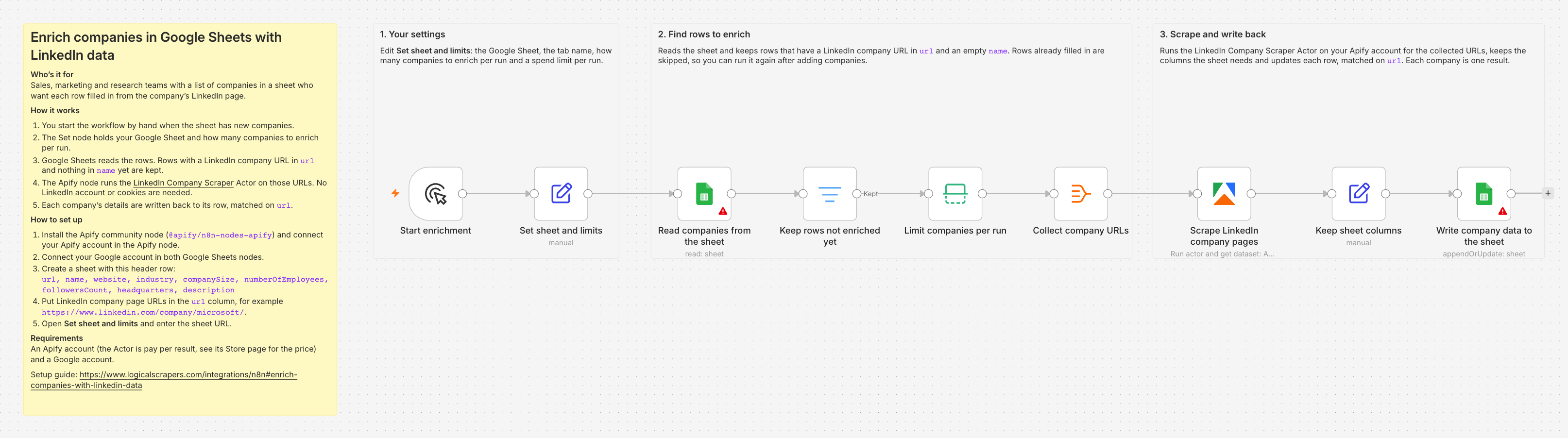
What the workflow does
- 1
Start by hand
You run the workflow when the sheet has new companies. Nothing runs on a schedule.
- 2
Your settings
One Set node holds the Google Sheet, the tab name, how many companies to enrich per run and a spend limit per run.
- 3
Find rows to enrich
Google Sheets reads the rows. Rows with a LinkedIn company URL in the url column and an empty name column are kept, so companies already filled in are skipped.
- 4
Scrape the company pages
The Apify node runs LinkedIn Company Scraper on your Apify account for those URLs. No LinkedIn account or cookies are involved.
- 5
Write back to the sheet
Name, website, industry, company size, employee count, follower count, headquarters and description are written to each company’s own row, matched on its URL.
Import it
Paste this URL into n8n’s Import from URL, or download the workflow JSON.
https://www.logicalscrapers.com/n8n/enrich-companies-with-linkedin-data.jsonSet it up
- Install the Apify community node, @apify/n8n-nodes-apify, in n8n and connect your Apify account in the Apify node.
- Connect your Google account in both Google Sheets nodes.
- Create a sheet with this header row: url, name, website, industry, companySize, numberOfEmployees, followersCount, headquarters, description.
- Put LinkedIn company page URLs in the url column, for example https://www.linkedin.com/company/microsoft/.
- Open the "Set sheet and limits" node and enter the sheet URL.
Scraper inputs the workflow sets
The workflow runs Scrape LinkedIn Company Details with these parameters. The scraper’s page documents every field it returns; its price is on the Apify listing.
| Parameter | Type | Required | Description |
|---|---|---|---|
companyUrls | array | Required | LinkedIn company page URLs to scrape (e.g. https://www.linkedin.com/company/microsoft/) |
Limitations
- The url column must hold LinkedIn company page URLs (linkedin.com/company/…). Rows with anything else are skipped.
- A row counts as enriched once its name column is filled in. A company page the scraper cannot read stays empty and is tried again on the next run.
- Each run enriches at most the number of companies in the settings node, 25 by default. Every company is one billed result.
- The spend limit per run is applied by version 0.7.0 and later of the Apify node. On earlier versions the companies-per-run setting is what bounds a run.
Built and tested on self-hosted n8n 2.41.6 with Apify node 0.6.10 and 0.8.0, 2026-10-02. Not yet tested: Google Sheets read and write steps.
Monitor Threads keyword mentions in Google Sheets with Apify
For social media, brand and community managers who want a running log of what is posted on Threads about a brand, product, competitor or hashtag.
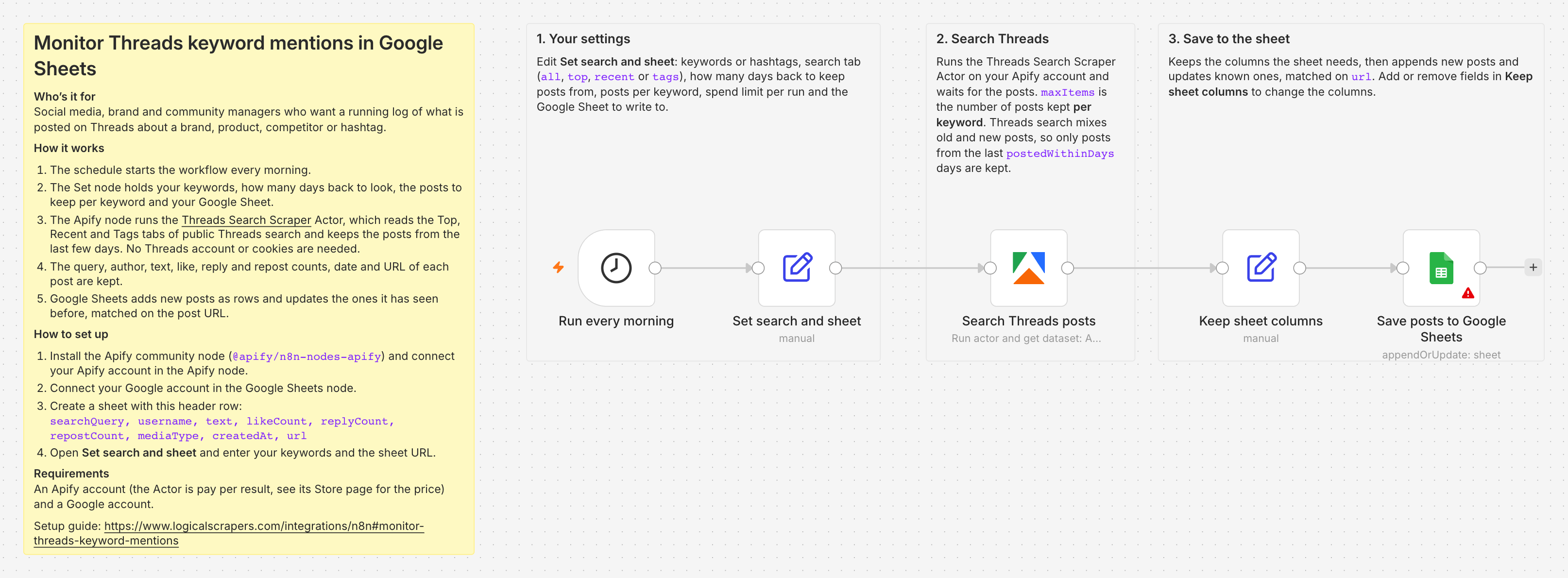
What the workflow does
- 1
Schedule
A Schedule Trigger starts the workflow every morning at 08:00.
- 2
Your settings
One Set node holds the keywords or hashtags, the search tab to read, how many days back to keep posts from, the posts to keep per keyword, a spend limit per run and the Google Sheet to write to.
- 3
Search Threads
The Apify node runs Threads Search Scraper on your Apify account. It reads the Top, Recent and Tags tabs of public Threads search and keeps the posts published inside your date window. No Threads account or cookies are involved.
- 4
Write to the sheet
The query, author, text, like, reply and repost counts, media type, date and URL of each post are appended to the sheet. A post already in the sheet is updated instead, matched on its URL, so daily runs do not duplicate rows.
Import it
Paste this URL into n8n’s Import from URL, or download the workflow JSON.
https://www.logicalscrapers.com/n8n/monitor-threads-keyword-mentions.jsonSet it up
- Install the Apify community node, @apify/n8n-nodes-apify, in n8n and connect your Apify account in the Apify node.
- Connect your Google account in the Google Sheets node.
- Create a sheet with this header row: searchQuery, username, text, likeCount, replyCount, repostCount, mediaType, createdAt, url.
- Open the "Set search and sheet" node and enter your keywords and the sheet URL.
Scraper inputs the workflow sets
The workflow runs Threads Search Scraper with these parameters. The scraper’s page documents every field it returns; its price is on the Apify listing.
| Parameter | Type | Required | Description |
|---|---|---|---|
searchQueries | array | Required | Keywords, phrases, hashtags (with or without #) or Threads search URLs (https://www.threads.com/search?q=...). Each query is searched separately. |
searchType | string | Optional | Which Threads search tab to read. Top returns the posts Threads ranks highest, Recent the newest posts, Tags the posts filed under the matching topic tag. All reads the three tabs in that order and removes duplicates, which returns the most posts per query. When Threads does not serve Top results to a logged-out visitor, the Actor reads Recent instead. |
maxItems | integer | Optional | Maximum number of posts to save per search query. Threads shows a logged-out visitor one page per search tab, so a single tab returns roughly 15 to 35 posts; use the All search type to get more. |
postedAfter | string | Optional | Keep only posts published on or after this date (YYYY-MM-DD, UTC). Applied to the posts Threads returns; it does not make Threads search further back. |
Limitations
- Threads shows a logged-out visitor one page per search tab, roughly 15 to 35 posts, and no further pages. Reading all three tabs is the most a keyword can return in one run.
- Threads search mixes old and new posts. The workflow keeps posts from the last 7 days by default, so a quiet keyword can add no rows on a given day.
- The spend limit per run is applied by version 0.7.0 and later of the Apify node. On earlier versions the posts-per-keyword setting is what bounds a run.
- The Google Sheets step matches on the column named `url`; renaming that column in the sheet makes every run append duplicates.
Built and tested on self-hosted n8n 2.41.6 with Apify node 0.6.10 and 0.8.0, 2026-10-02. Not yet tested: Google Sheets step.
Save LinkedIn job postings to Google Sheets with Apify
For recruiters, job seekers and analysts who want a sheet of the LinkedIn job postings for a role and location, refreshed every day.
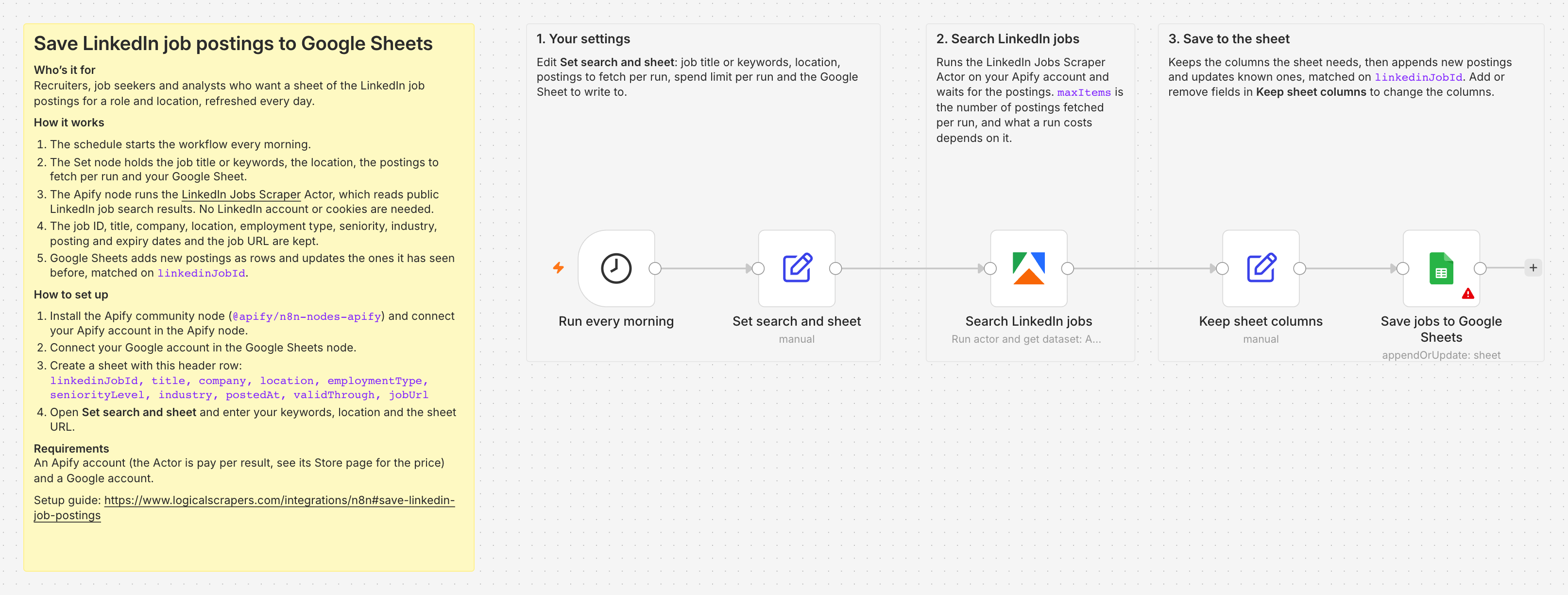
What the workflow does
- 1
Schedule
A Schedule Trigger starts the workflow every morning at 08:00.
- 2
Your settings
One Set node holds the job title or keywords, the location, the postings to fetch per run, a spend limit per run and the Google Sheet to write to.
- 3
Search LinkedIn jobs
The Apify node runs LinkedIn Jobs Scraper on your Apify account, which reads public LinkedIn job search results. No LinkedIn account or cookies are involved.
- 4
Write to the sheet
The job ID, title, company, location, employment type, seniority, industry, posting and expiry dates and the job URL are appended to the sheet. A posting already in the sheet is updated instead, matched on its LinkedIn job ID.
Import it
Paste this URL into n8n’s Import from URL, or download the workflow JSON.
https://www.logicalscrapers.com/n8n/save-linkedin-job-postings.jsonSet it up
- Install the Apify community node, @apify/n8n-nodes-apify, in n8n and connect your Apify account in the Apify node.
- Connect your Google account in the Google Sheets node.
- Create a sheet with this header row: linkedinJobId, title, company, location, employmentType, seniorityLevel, industry, postedAt, validThrough, jobUrl.
- Open the "Set search and sheet" node and enter your keywords, location and the sheet URL.
Scraper inputs the workflow sets
The workflow runs LinkedIn Jobs Scraper with these parameters. The scraper’s page documents every field it returns; its price is on the Apify listing.
| Parameter | Type | Required | Description |
|---|---|---|---|
keywords | string | Optional | Job title or keywords to search for (e.g. 'software engineer'). Optional if a location is provided. |
location | string | Optional | Location to search in (e.g. 'San Francisco, CA'). Optional if keywords are provided. |
maxItems | integer | Optional | Maximum number of job listings to scrape |
Limitations
- Searches by keyword and location, the same as the LinkedIn jobs search bar. One workflow covers one search; duplicate it for a second role or location.
- Each run fetches the first postings LinkedIn returns for the search, 25 by default. It does not keep a position between runs or page back through older postings.
- The workflow writes the ten columns listed in the setup. Salary is not among them.
- The spend limit per run is applied by version 0.7.0 and later of the Apify node. On earlier versions the postings-per-run setting is what bounds a run.
Built and tested on self-hosted n8n 2.41.6 with Apify node 0.6.10 and 0.8.0, 2026-10-02. Not yet tested: Google Sheets step.